
PUNOVIX Blog
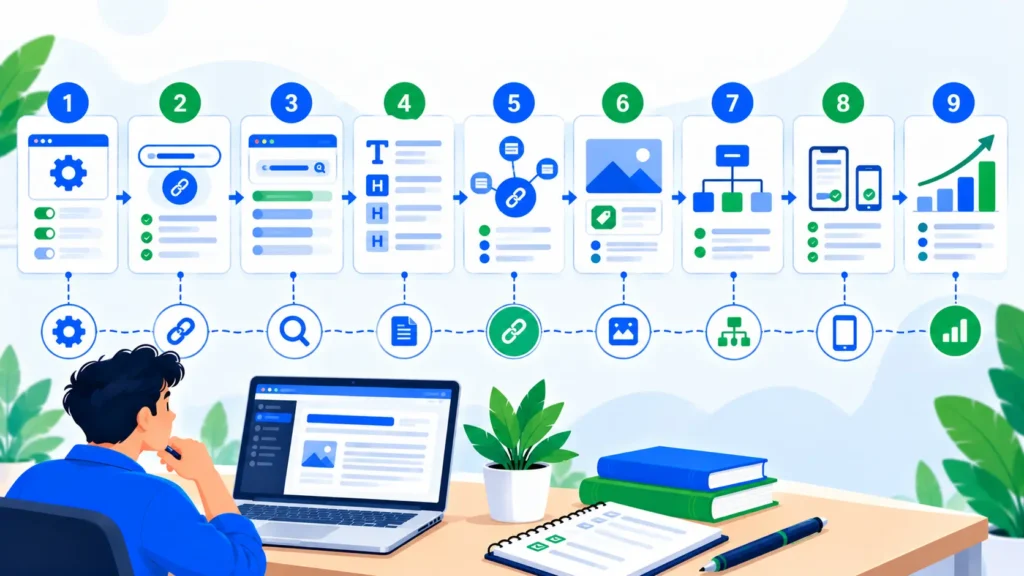
A WordPress website needs more than well-written articles to perform well in search. Search engines must be able to discover important pages, understand their content, and access the information that visitors need. A well-organized website, useful content, descriptive titles, relevant links, and appropriate technical settings all contribute to a sound SEO foundation.
This WordPress SEO checklist covers 12 practical steps that you can follow before publishing new content or reviewing an existing website. The process is designed for WordPress site owners using themes, page builders, and an SEO plugin. It focuses on actions you can check and verify rather than promises about rankings.
For WordPress SEO for beginners, the most useful starting point is to understand what each setting does before changing it. You do not need to install multiple plugins or edit complicated code to complete the basic checks. Work through the steps, document the changes you make, and verify important results after updating the site.
What Does a WordPress SEO Checklist Cover?
A WordPress SEO checklist is a practical review of the settings and page elements that help search engines find and interpret your website. It can cover site visibility, permalink structure, SEO titles, meta descriptions, headings, internal links, image information, sitemaps, canonical URLs, mobile usability, and performance.
Some checks apply to individual posts, while others affect the website as a whole. For example, a descriptive title belongs to a particular page, whereas the site’s search visibility setting can affect the entire website. Understanding that distinction helps you avoid making a sitewide change when only one page needs attention.
Google’s official SEO Starter Guide explains the fundamentals of making content understandable to search engines and useful for visitors. Following recommended practices can improve discoverability, but it does not guarantee that every page will be indexed or rank for a particular query.
Step 1: Check WordPress Site Visibility
Before spending time optimizing content, confirm that your website is available for search engines to access. A website may look normal when you are logged in but still have a setting that discourages search engines from indexing it.
In a standard self-hosted WordPress installation, open Settings → Reading and look for the search engine visibility option. Make sure the setting that discourages search engines from indexing the site is not enabled when your website is intended to appear in search results.
Check the following:
The website is publicly accessible.
Important pages do not require a login.
The site is not unintentionally set to discourage indexing.
Important page content is visible without unusual restrictions.
HTTPS works correctly and visitors are not sent to an unexpected version of the URL.
Do not change privacy or indexing settings without understanding their effect. A private staging site may intentionally discourage indexing, while a public business website usually needs its important pages to be accessible.
For WordPress SEO for beginners, this is one of the most important first checks because content optimization cannot compensate for a website that is unintentionally unavailable to search engines.
Step 2: Review Your Permalink Structure
A permalink is the permanent URL used for a page or post. A descriptive URL helps visitors understand the topic before opening the page and makes links easier to read and share.
For example, a slug such as wordpress-seo-checklist clearly communicates the subject of a guide. A random string or a long URL filled with unnecessary words is usually less convenient.
In WordPress, review Settings → Permalinks to understand the structure used for your posts. Choose a readable format that suits the website, and avoid changing the site’s established permalink structure casually.
For an individual post, confirm that the slug matches the approved content plan. Do not add numbering or change the agreed wording without a clear reason.
Protect existing published URLs
Changing a published URL can break internal links and links from other websites. If a URL must change, redirect the old address to the relevant new page using an appropriate permanent redirect, and update internal links that point to the old address.
Google’s documentation on canonicalization explains how search engines choose a preferred URL when similar or duplicate versions exist. Keep the URL, canonical signal, and sitemap entry consistent where applicable.
For WordPress SEO for beginners, preserving established URLs is often the safest approach. A new post can use its approved slug from the beginning, while an existing article should not be changed just to make a small SEO adjustment.
Step 3: Configure Your SEO Plugin Carefully
An SEO plugin helps you manage page titles, meta descriptions, canonical information, sitemap settings, and other SEO-related options. It does not automatically guarantee that a page will rank.
Since PUNOVIX uses Rank Math SEO Free, continue with that existing setup instead of installing another SEO plugin to duplicate the same features.
Check the following in your current configuration:
The main website details are correct.
Posts and pages intended for search are configured appropriately.
SEO titles and meta descriptions can be edited.
The XML sitemap is available if the plugin is configured to generate one.
Schema settings are appropriate for the content type.
There are no unintended conflicts with another plugin or theme setting.
Avoid changing several plugin options at once. Record the current configuration before making a significant adjustment, then verify the output on the relevant page.
For a broader introduction to SEO, read our SEO for beginners guide to understand the fundamentals of crawling, indexing, and search visibility.
Understand plugin scores and warnings
Rank Math’s score is useful as an editorial checklist, but it is not a Google ranking score. A warning may indicate a missing field or a paid feature suggestion rather than a serious technical problem.
Review warnings individually. Fix genuine issues such as missing image descriptions, broken links, or an incorrect title. Do not purchase a premium upgrade just to remove a Content AI suggestion if you do not need that feature.
Step 4: Optimize SEO Titles and Meta Descriptions
Each important page should have a clear title that describes its actual content. Keep it concise enough to communicate the subject, and put the main topic near the beginning when it reads naturally.
A meta description should summarize what a visitor can expect from the page. It may be used in search snippets, although Google can select different text from the page depending on the query.
Before publishing, confirm that:
The SEO title describes the content accurately.
The main topic appears naturally in the title.
The meta description provides a useful summary.
The title and description are not copied from another page.
The actual content fulfils the promise made in the snippet.
Do not judge a title only by its character count or the plugin’s color indicator. Pixel width, wording, the displayed search snippet, and the page’s purpose all matter. A shorter title that is vague may be less effective than a slightly longer but clearer title.
For a practical publishing process, include these checks in your WordPress SEO settings review. Keep the title and description aligned with the visible heading and the actual article rather than repeating the focus keyword unnaturally.
Step 5: Organize Content and Headings Properly
Good page structure helps visitors navigate the content and understand how the sections relate to one another. Use a clear main heading, meaningful H2 sections, and H3 subheadings where they help explain a smaller topic.
In WordPress with Elementor or another editor, check the actual heading tags rather than relying only on the font size. A large-looking text element is not necessarily an H1 or H2.
Review these details:
The post has a clear main heading.
Subheadings describe the section that follows.
Paragraphs are readable and focused.
Lists and tables are used when they improve understanding.
Important information is available as actual page text.
The content answers the reader’s main question.
Avoid adding keywords to every heading just to influence a plugin score. Use the wording that makes the structure easiest to understand.
The content should also be useful and trustworthy. Google’s people-first content guidance encourages publishing material that serves a real audience rather than creating pages primarily to manipulate search rankings.
A good WordPress SEO checklist should therefore include an editorial review alongside technical checks.
For a more detailed page-level optimization process, see our on-page SEO for beginners guide.
Step 6: Add Relevant Internal Links
Internal links connect related pages on your website. They help readers discover supporting information and provide crawlable paths between important pages.
Use descriptive anchor text that tells readers where the link leads. For example, a page about website optimization could link to a beginner SEO guide when readers need a broader introduction.
For the SEO & Blogging category, the planned internal links are:
Blog 1 — SEO for Beginners:
https://punovix.com/how-to-learn-seo-for-beginners/Blog 3 — On-Page SEO for Beginners:
https://punovix.com/on-page-seo-for-beginners/
The current article should link to these destinations only after confirming that each URL opens the correct published post. If one is still a draft, wait until it is published before activating that link.
Check that internal links are actual clickable hyperlinks rather than plain URL text. Also confirm that they do not lead to a 404 page or an unrelated article.
Google’s crawlable links guidance explains why links and descriptive anchor text help search engines understand page relationships. Keep links relevant to the paragraph; do not add them solely to reach a certain number.
Step 7: Use External Links to Support Information
External links can give readers access to official documentation, original sources, or detailed explanations that support your content.
Choose sources carefully and check that each destination opens. Government websites, official documentation, research publications, and original product documentation are often useful starting points, depending on the claim being discussed.
For this WordPress guide, relevant references include Google’s SEO documentation, its sitemap guidance, and WordPress’s own SEO documentation. The WordPress.org article on search engine optimization is a useful reference for website owners.
When adding an external link, check its destination, make sure the anchor text describes it, and use appropriate link attributes when a link is sponsored or user-generated. Do not add nofollow indiscriminately to ordinary editorial references, and do not assume that every external link must be DoFollow in every circumstance.
A strong technical SEO checklist includes link verification because a link can be present in the editor while still pointing to an incorrect or unavailable page.
Step 8: Optimize Images and Alt Text
Images can help explain a topic, show a product, or make a tutorial easier to follow. They should support the page rather than exist only to increase its visual size.
For each important image:
Use a descriptive filename.
Choose suitable dimensions for the placement.
Compress the image while preserving acceptable quality.
Add accurate alt text when the image conveys meaningful information.
Check that the image displays correctly on mobile devices.
Avoid using images or logos without the necessary rights.
For example, a screenshot showing an SEO settings panel could use alt text such as “WordPress SEO settings panel showing the page title and meta description fields.” This describes the actual scene more usefully than a generic list of keywords.
WordPress image SEO
WordPress image SEO includes descriptive filenames, meaningful alt text, appropriate image dimensions, and suitable compression. These details help with accessibility and provide context about what the image represents.
Use alternative text to describe the meaningful content of an image, not to repeat every target phrase. Decorative images may not need descriptive alt text, depending on how they are implemented.
For PUNOVIX, featured and hero images should follow the approved design system: premium 2D Adobe Illustrator-style vectors, blue #2563EB, green accents, navy #111827, bright backgrounds, and subtle shadows. Avoid heavy 3D/CGI effects unless the visual brief specifically changes.
Google’s image SEO best practices explain how descriptive filenames and useful alt text can help search engines understand images. Make WordPress image SEO part of the upload process instead of leaving it until after publication.
Step 9: Check the XML Sitemap
A sitemap lists URLs that you want search engines to discover. WordPress and SEO plugins can often generate a sitemap automatically, so first check whether your current installation already provides one.
In Rank Math, review the sitemap settings and open the sitemap URL shown by the plugin. Confirm that it loads and includes the types of published pages you intend search engines to discover.
Check that:
Important published posts and pages can be found through the sitemap.
The sitemap does not include URLs that should not appear in search.
The site’s preferred canonical URLs are consistent.
The sitemap is accessible rather than returning an error.
You are not managing multiple overlapping sitemap configurations unnecessarily.
Google’s sitemap documentation explains that a sitemap should contain the canonical URLs you prefer to appear in search. Submitting a sitemap does not guarantee indexing, but it can help Google discover relevant URLs.
A technical SEO checklist should distinguish between a sitemap being available and every URL actually being indexed. Those are different conditions and need different checks.
Step 10: Review Technical SEO and Indexing
Technical SEO includes the settings and website conditions that affect whether search engines can access and interpret important pages. You do not need to change every technical setting to complete a basic review.
Check important pages for these issues:
The page loads without an unexpected error.
It is not accidentally marked
noindex.It is not blocked from crawling in a way that prevents intended discovery.
The canonical URL is appropriate when duplicate versions exist.
Important pages can be reached through internal links.
The website uses HTTPS correctly.
Mobile layouts do not hide essential content or controls.
Use Google Search Console
Google Search Console can help you review indexing information, search queries, impressions, clicks, and other performance data. For a specific URL, use the URL Inspection tool to see what Google knows about the page and whether it reports an indexing issue.
Do not assume that an indexed page will rank for every query, or that a page not appearing immediately is necessarily broken. Search engines need time to discover and process content, and indexing is not guaranteed.
Google’s URL inspection and recrawling guidance explains how site owners can request recrawling after meaningful updates. Repeatedly requesting indexing does not guarantee faster processing.
A useful technical SEO checklist separates problems that you can fix directly—such as a mistaken noindex setting—from results that require monitoring, such as whether a newly published article appears in search.
Step 11: Check Mobile Usability and Performance
A site should be comfortable to use on phones, tablets, and desktop screens. Responsive design does not just mean that the page fits on a smaller screen. Text must remain readable, buttons must be usable, navigation must work, and visitors should be able to reach important information.
If you use Astra and Elementor, preview the page at different viewport widths. Check the header, footer, columns, tables, image sizes, popups, forms, and spacing. Make sure the mobile layout does not hide essential content or force visitors to zoom unnecessarily.
Performance should be measured rather than guessed. Use Google’s PageSpeed Insights or another suitable testing tool to identify the most important issues. Large images, unnecessary scripts, excessive page elements, and server response problems may all contribute to a slow experience.
Before changing caching, CSS, JavaScript, or image optimization settings, note the current setup and make one controlled change at a time. Clear the appropriate caches after an update and re-test the same page. Avoid installing additional performance plugins that duplicate work already handled by your existing configuration.
For WordPress SEO for beginners, the most useful performance habit is to measure an actual page, fix high-impact issues, and test again instead of repeatedly changing settings without evidence.
Step 12: Review Schema, Categories, and Publishing Quality
Structured data can help search engines understand eligible content types, but adding schema does not guarantee a special search result. Use a schema type that genuinely matches the content, and avoid adding properties that are not supported by the page.
If Rank Math manages schema for a post, check its output and avoid duplicating the same schema through another plugin or custom code unless the setup is intentional.
Review your categories and tags as well. Use categories to organize related articles, and avoid creating many near-identical categories that make the site difficult to navigate. Relevant internal links should connect related posts without sending readers to unrelated pages.
Before publishing, confirm the author information, featured image, excerpt, SEO title, meta description, and permalink. Preview the article, test important links, and check the layout on mobile.
This WordPress SEO checklist should fit into your existing publishing process. A reusable checklist saves time when it catches genuine problems, but it should not replace a final review of the published page.
WordPress SEO Checklist Before Publishing
Use the following checklist before publishing a new article or making a significant update.
Confirm that the site and page are publicly accessible when intended.
Preserve the approved permalink and check for accidental URL changes.
Verify the SEO title and meta description.
Review the main heading and the H2/H3 structure.
Confirm that the content matches search intent.
Add relevant internal links to published pages.
Test external links and verify their destinations.
Complete WordPress image SEO, including descriptive filenames and accurate alt text.
Check the sitemap and the page’s indexing configuration.
Review canonical and schema settings where applicable.
Test the page on mobile devices.
Measure performance and fix material issues.
Review Search Console data after publication and allow time for crawling and indexing.
Keep a copy of the WordPress SEO checklist beside your editorial process so you can repeat the same checks on future posts. Adjust it for different page types when necessary rather than treating every page as identical.
Conclusion
A well-maintained WordPress website benefits from clear content, consistent page settings, descriptive links, useful images, and sound technical foundations. These checks make the site easier to maintain and help search engines discover and understand important pages, although no checklist can guarantee rankings.
Use this WordPress SEO checklist as a repeatable process. Work through the settings carefully, verify important URLs, keep the existing permalink structure stable, and monitor actual results in Search Console. The aim is not to make every plugin indicator green at any cost; it is to build a website that is useful to visitors and accessible to search engines.
Frequently Asked Questions
Q1. What is a WordPress SEO checklist?
It is a repeatable set of checks covering site visibility, titles, metadata, headings, links, images, sitemaps, indexing, mobile usability, and other factors that affect a WordPress page’s accessibility and clarity. It helps you catch omissions before and after publishing.
Q2. Is WordPress SEO for beginners difficult?
The fundamentals are manageable when learned one step at a time. Start with site visibility, readable URLs, useful content, titles, links, and image alt text. Learn advanced technical settings only when you understand the issue they are meant to solve.
Q3. Which WordPress SEO settings should I check first?
Review site visibility, permalink structure, SEO title and meta description controls, sitemap availability, indexing settings, and the canonical URL where applicable. The correct configuration depends on the site, its content, and its intended visibility.
Q4. What should a technical SEO checklist include?
It should include crawlability, indexing status, HTTPS, canonical URLs, sitemap accessibility, internal links, mobile accessibility, and important loading or server errors. It should also distinguish between a technical issue and a ranking outcome that requires monitoring.
Q5. Why is WordPress image SEO important?
Useful image descriptions support accessibility and help search engines understand image context. Appropriate dimensions and compression can also improve how images are delivered and displayed. Alt text should describe the actual image rather than repeat keywords unnecessarily.
Q6. Does Rank Math guarantee better rankings?
No. Rank Math helps manage metadata and highlights common checks, but its score is not a Google ranking score. Rankings depend on relevance, content quality, competition, technical access, and other signals.
Q7. Should I submit my sitemap to Google?
A sitemap can help Google discover URLs, especially on sites where some pages may be difficult to find through internal links. It does not guarantee that every URL will be crawled or indexed. Review your sitemap first and use Search Console to monitor important URLs.
Q8. Should I change an old WordPress URL to improve SEO?
Only when there is a clear reason. An established URL may already be linked to by other pages. If a change is necessary, redirect the old URL appropriately, update internal links, and review the new URL’s canonical and sitemap signals.
Related SEO & Blogging Articles

WordPress SEO Checklist: 12 Steps to Improve Search Visibility
PUNOVIX Blog A WordPress website needs more than well-written articles to perform well in search. Search engines must

SEO Tips for Bloggers: 9 Practical Ways to Improve Blog Posts
PUNOVIX Blog Publishing a blog post is only one part of building a useful website. Readers need to

On-Page SEO for Beginners: A Practical Checklist
PUNOVIX Blog On-page SEO helps search engines understand what a page is about and helps visitors find, read,